Referee Simulator Controls & Device Tips
Move like an official, whistle on time, and throw flags cleanly on PC or mobile.
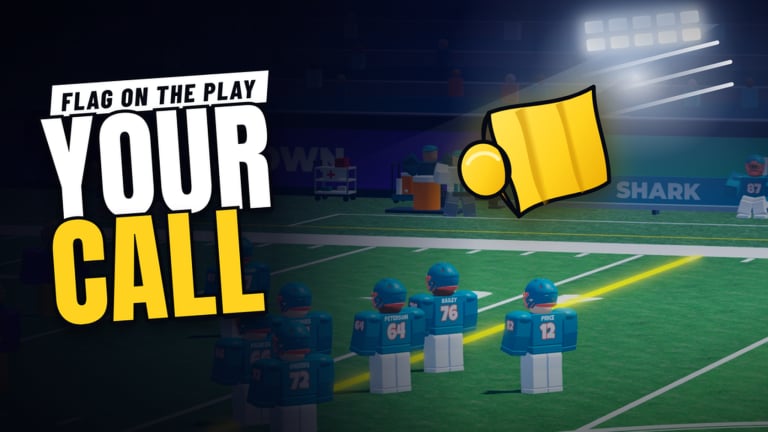
Clean controls turn Referee Simulator: College Football from a chaotic selfie cam into a readable officiating sim. ReF - Studios built a Roblox sports experience where timing matters: a late button mash looks like a guess, while a crisp input looks like a call. This page focuses on movement, camera, whistle/flag actions, and the real differences between touch screens and keyboards.
Pair this guide with Getting Started for session flow and with Call Flags once your fingers stop fighting the UI.
Mindset: inputs serve positioning
Great refs are rarely the ones who found a secret keybind first. They are the ones who:
- Arrive at the angle before the foul finishes
- Keep the camera stable enough to judge contact
- Press once with intent instead of stutter-clicking
If you miss, ask whether you were out of position before you blame the bind.
Movement fundamentals (all devices)
Practice these in a quiet stretch of field time:
- Straight-line sprints along the sideline — used for fan chases (Catch Fans).
- Diagonal cuts toward piles — used for fights (Break Up Fights).
- Short lateral shuffles near the line — used for holding looks without drifting into the backfield theater.
- Emergency stops — so you do not overrun a scrap and clip into useless space.
Roblox camera drift is real. Re-center intentionally after big turns so your next flag is not thrown at the skybox.
Whistle and flag inputs
Exact on-screen labels can shift after weekly updates, so learn the jobs, then re-find the buttons after patches:
- Whistle / stop energy — marks that you are killing the play vibe or asserting control.
- Flag / penalty throw — commits the call the fantasy is built around.
- Interact / break-up action — closes fight distance or completes a security job.
- Sprint modifier — mandatory for invaders; optional for slow walks between hashes.
Drill sequence: move to angle → stabilize camera → single deliberate flag input → reset feet. Spam trains panic.
PC tips
Keyboard and mouse setups usually win on precision:
- Bind movement to keys you can hold while micro-adjusting the mouse for sight lines.
- Keep the flag key away from your sprint key if you constantly throw while running by accident.
- Use a slightly lowered mouse sensitivity for judging contact; flick cams miss soft holds.
- Fullscreen reduces accidental taskbar hits mid-chase.
- If you play with friends on voice, mute push-to-talk conflicts with your whistle key.
PC refs should still practice sprint-stop-sprint for fan paths; raw DPI does not replace angles.
Mobile tips
Touch controls trade precision for flexibility:
- Sit thumbs where you can sprint and steer without covering the flag button.
- Prefer landscape orientation for wider field vision.
- Increase brightness; night-mode eyes miss dark jersey contact.
- Disable aggressive touch gestures that steal the camera mid-throw.
- Take a half-second longer before tapping flag — mobile mis-taps create ghost throws.
- When chasing fans, steer with larger arcs; tiny jitter zigzags bleed speed.
If your device overheats, lower graphics before you lower effort — frame dips punish fight break timing.
Co-op control etiquette
On a max-seven server:
- Do not all face the same camera direction; staggered angles catch more fouls.
- Call “flag coming” in chat/voice if your animation might confuse teammates.
- Security refs keep sprint ready; line refs keep camera low and steady.
- After a patch, spend thirty seconds confirming buttons still sit where you remember.
Accessibility and comfort
- Remap if Roblox or your device overlay allows safer reaches for your hands.
- Take breaks; referee sims reward focus more than marathon grinding.
- Avoid third-party “control macros.” They slide into executor territory covered in the Script Safety Guide.
Practice plan (15 minutes)
- Three minutes of sideline sprints and stops.
- Three minutes of camera tracking a moving pile without inputs.
- Three minutes of walk-up, plant, single flag press.
- Three minutes of diagonal closes for fight distance.
- Three minutes of fan-angle pursuit without tunnel vision.
Log which step felt worst and reread that section next session. Then jump into Penalty Priority so your clean inputs serve the right jobs first.
Related pages
Master the hands, then trust the eyes.
Frequently Asked Questions
Quick answers for codes, flags, fights, and fan catching.
Do controls differ on mobile and PC?
The jobs are the same, but touch favors deliberate taps and wider steering arcs while PC favors precise camera micro-adjustments. Practice on the device you actually play.
Why do my flags feel late?
Usually positioning or camera instability, not a missing secret key. Arrive earlier, stabilize the view, then press once.
Can I use macros for whistle timing?
Avoid third-party macros and executors. They risk bans and teach bad habits. Train deliberate single inputs instead.
What should I practice after controls?
Move into Call Flags, then Break Up Fights and Catch Fans, and apply Penalty Priority during chaotic moments.